MovieBox for Firestick Free Download (2026)
Watching movies on a phone is fine, but watching them on a big TV screen is a different feeling. MovieBox APK on a Firestick gives you that big screen experience. You can watch free movies and TV shows on your television without paying for another subscription.
MovieBox is not available on the Amazon Appstore. That is why you install it through the Downloader app. The steps below are simple, and you only need your Firestick remote to follow them.
Is MovieBox for Firestick Safe to Use?
MovieBox is a third-party app. It does not come from the Amazon Appstore, so you install it yourself by allowing apps from unknown sources. That step always carries some risk, and no third-party app can be called 100 percent safe.
To lower the risk, download the file only from this site. Do not download it from random pages that promise the same app. Those copies can carry malware. Keep your Firestick software updated, and do not give the app any permission it does not need. If you want extra privacy while streaming, you can use a VPN. For the full safety and legal picture, read the Is MovieBox Pro Legal and Safe guide.
MovieBox For FireStick
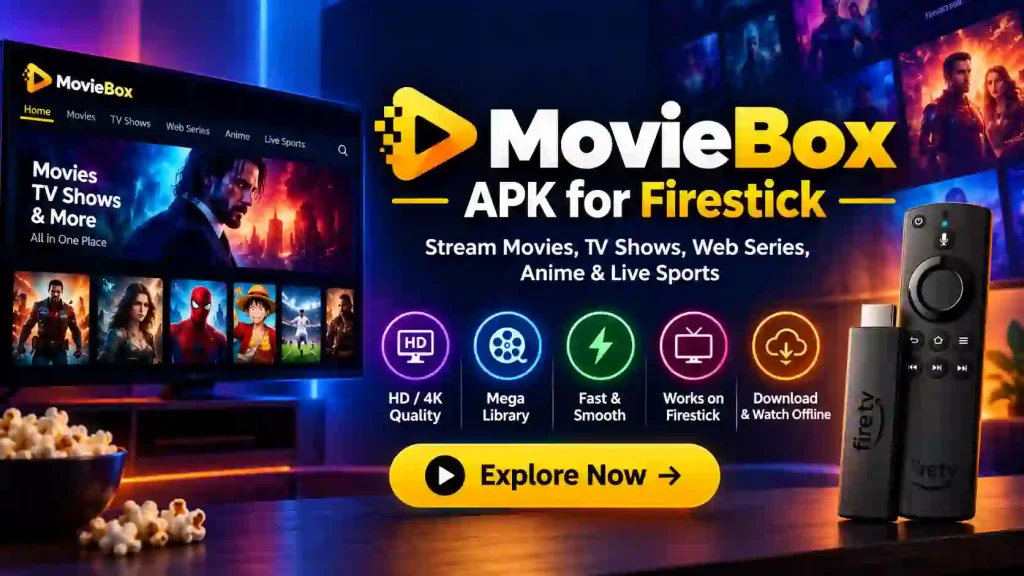
On a Firestick, MovieBox turns your TV into a small cinema. Movies, TV shows, and series open on the big screen, and you control everything with the remote. You do not need a phone or a computer once the app is installed.
The app works on most Fire TV Stick models, including the Fire TV Stick 4K and Fire TV Cube. Older sticks can run it too, but they may load a little slower. If you already use MovieBox on Android TV, the experience feels familiar, because the TV layout is similar. You can read the Android TV guide for the big-screen basics.
Key Features of MovieBox for Firestick
Smart Content Suggestions
The app shows suggestions based on what you watch. If you finish an action movie, it shows more action movies. This saves time, because you do not have to search for every title yourself.
Remote Control Navigation
Everything is built for the Firestick remote. You move with the directional buttons and select with the middle button. Menus are large and easy to read from a sofa distance.
Powerful Search and Filters
You can search by movie name, show name, or actor. Filters help you narrow results by genre, so you can find comedy, drama, or thriller titles without scrolling through everything.
Multiple Streaming Quality Options
You can pick the quality that suits your internet. On fast Wi-Fi, HD and 4K look sharp. On slower internet, a lower quality keeps the video playing without long pauses.
Instant Streaming Without Downloads
You do not have to download a movie before watching it. Tap a title and it starts playing. This is the fastest way to watch, and it saves space on your Firestick.
Offline Viewing Option
If you want to watch later without internet, you can download a movie or show inside the app. This is useful when your Wi-Fi is weak or when you plan to watch during a trip.
Remote-Friendly Navigation
The whole layout is made for TV screens. Buttons are big, text is clear, and you never need a keyboard for basic use. Only searching needs the on-screen keyboard, and even that works fine with the remote.
High-Quality HD and 4K Streaming
On a good connection, movies play in HD, and supported titles play in 4K on 4K sticks. Colours look clear, and the picture stays sharp on a large TV.
Smooth and Fast Performance
The app loads quickly on newer sticks like the Fire TV Stick 4K. Menus open without long waits, and playback starts fast when your internet is stable.
Completely Free to Use
There is no subscription and no sign-up needed for the standard app. You install it and start watching. No account, no monthly fee.
How to Install MovieBox for Firestick?
MovieBox for Firestick v4.0 (Latest Version)
Step No 1: Turn On Your Firestick
Turn on your TV and switch to the Firestick input. Wait for the Firestick home screen to load fully before you start.
Step No 2: Enable Apps from Unknown Sources
Open Settings, then go to My Fire TV, then Developer Options. Turn on Install Unknown Apps for the Downloader app. If Developer Options is not visible, open My Fire TV, then About, and press the select button on your Firestick device name 7 times quickly to bring it back. Without this permission, your Firestick will block the install.
Step No 3: Install the Downloader App
Go back to the home screen. Search for Downloader in the Amazon Appstore and install the free app. Downloader is a well-known tool for installing apps that are not on the Appstore.
Step No 4: Open Downloader and Allow Permissions
Open Downloader. The first time it opens, it asks for permission to access files on your device. Allow it. Without this permission, Downloader cannot save the APK file.
Step No 5: Enter the MovieBox APK URL
In Downloader, type moviesboxappk.com in the URL box and press Go. This site opens inside Downloader. Tap the green Download button on the homepage. The MovieBox APK file starts downloading. No short link has been invented here — the step uses this site’s own homepage and its download button.
Step No 6: Install MovieBox
When the download finishes, the install screen opens on its own. Tap Install and wait a few seconds. When it finishes, tap Done. Do not tap Open yet if you want to delete the APK file first to save space — that step is optional.
Step No 7: Launch MovieBox on Firestick
Press the Home button on your remote. Go to Your Apps and Channels, find MovieBox in the list, and open it. If you do not see it at first, scroll to the end of the apps row — newly installed apps often sit there.
Step No 8: Sign In or Start Using the App
The standard MovieBox app does not need an account. Open it and start watching right away. If a title asks you to pick a quality or a server, choose the one that plays smoothly on your connection.
How Can You Install MovieBox for Firestick Using an ES File Explorer Alternative Method?
ES File Explorer is an old file-manager method. One honest note first: ES File Explorer is no longer available on the Amazon Appstore, so this method only works if you already have it installed on your Firestick. For most users, the Downloader method above is the better choice.
Enable Apps from Unknown Sources
Turn on Install Unknown Apps the same way as in Step 2 above. This permission is needed for any app installed outside the Appstore.
Install the Downloader App
If you do not have a file manager already, install Downloader from the Amazon Appstore. You need it to fetch the APK file.
Enter the MovieBox APK URL
Open Downloader, type moviesboxappk.com, press Go, and tap the download button on the homepage, exactly as in Step 5 above.
Install the MovieBox APK
When the download finishes, tap Install on the install screen. Wait for the confirmation, then tap Done.
Launch MovieBox
Go to Your Apps and Channels from the home screen and open MovieBox.
Watch Movies on MovieBox
Browse the home screen, pick a movie or show, choose a quality, and press play. If a file-manager app is already on your device, you can also open the downloaded APK from its Downloads folder to install it again later.
Pros and Cons Of MovieBox For FireStick
Pros:
Cons:
Common Problems You May Face on Firestick
FAQS – Frequently Asked Questions
Is MovieBox for Firestick free?
Yes. The standard app is free, with no subscription and no account needed.
Is MovieBox available on the Amazon Appstore?
No. You install it through the Downloader app by allowing apps from unknown sources.
Do I need an account to use MovieBox on Firestick?
No. The standard app opens and plays without any sign-up.
Will MovieBox work on older Firestick models?
It works on most models, including older sticks, but older hardware may load slower and struggle with 4K. The Fire TV Stick 4K gives the smoothest result.
How do I update MovieBox on Firestick?
It does not update on its own. When a new version comes out, open Downloader, download the new APK from this site, and install it over the old version without uninstalling first.
Conclusion
MovieBox for Firestick is a simple way to watch free movies and shows on your TV. Install Downloader, allow unknown apps, download from this site, and you are watching on the big screen. Keep the app updated, download only from this site, and use Mouse Toggle if the remote cannot reach a button.